Setup your Git on Windows
GitHub provides two ways of installation: GitHub Desktop, and the command line by installing the Git software on your system. Personally, from a developer perspective, I would suggest you use the command line, as it comes in handy and gives more flexibility in solving bugs and doing more with version control, especially when conflicts happen with Git. This tutorial is focused on the command line version.
Your install checklist
Step 1: Let’s download Git
Go to the Git Website and click on the Download for Windows button.
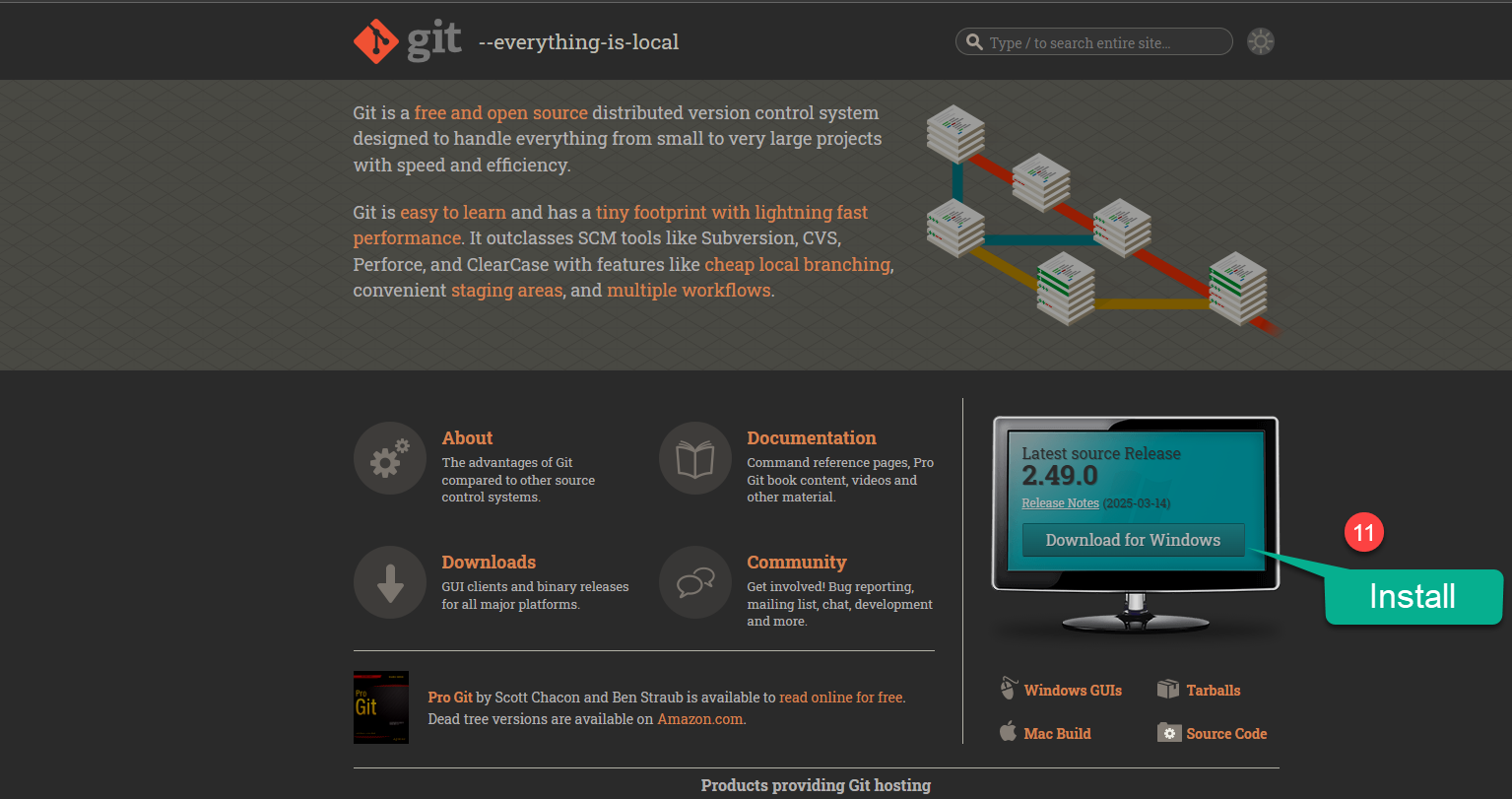
- Marker 11: Install: Download for Windows
Step 2: Select the version you want to install
Get your installer: Based on your version of Windows, you can choose the standalone installer or the Windows installer to get started. As my system is 64-bit, I will choose 64-bit here. You can find out which system you are using by right-clicking the This PC icon, choosing Properties and checking the System type.
- 🖥️ This PC
- → right click
- Properties
- → look for
- System type
Installer: Get the Installer
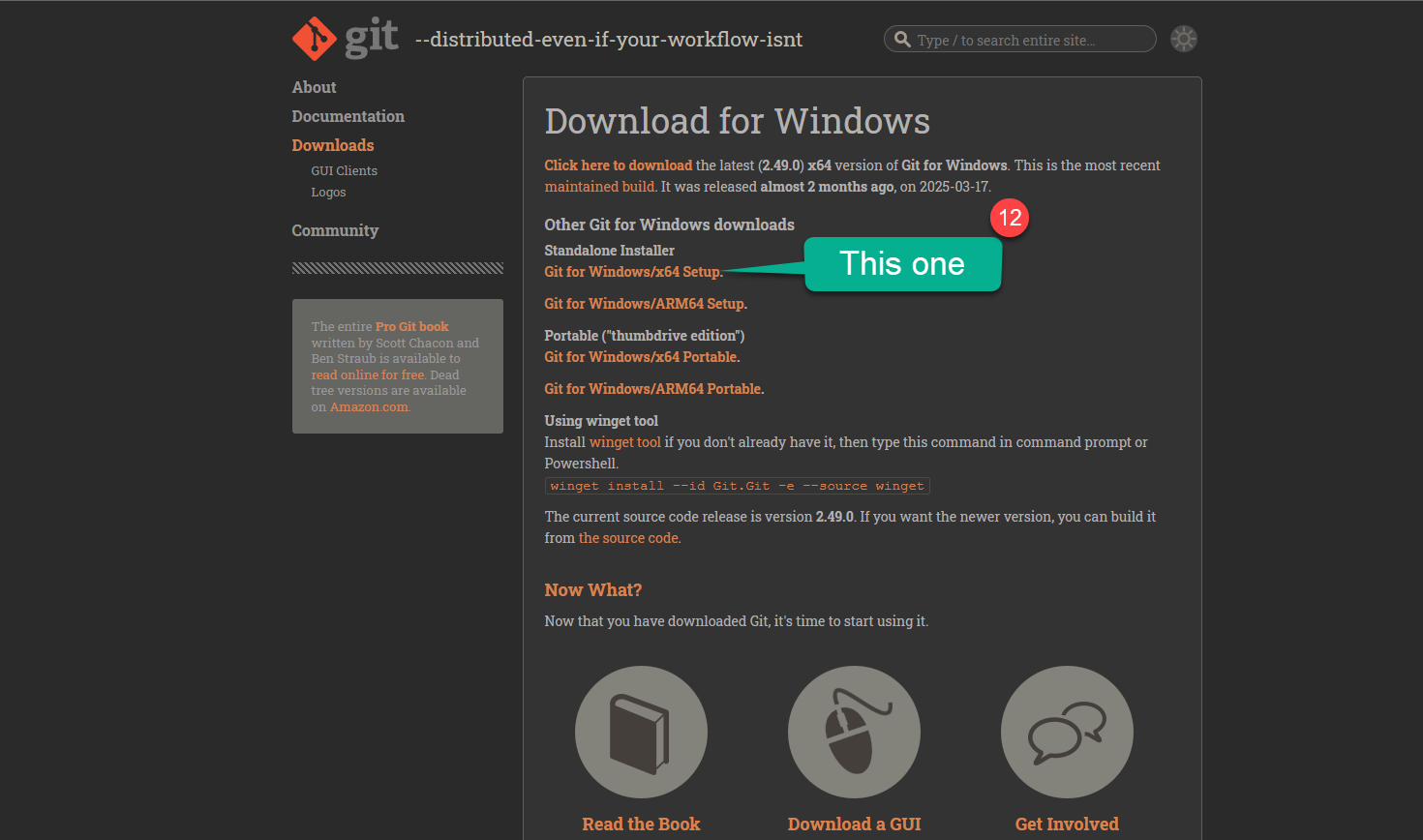
- Marker 12: This one: Git for Windows/x64 Setup
Start Installation: Open the installer once it has downloaded.
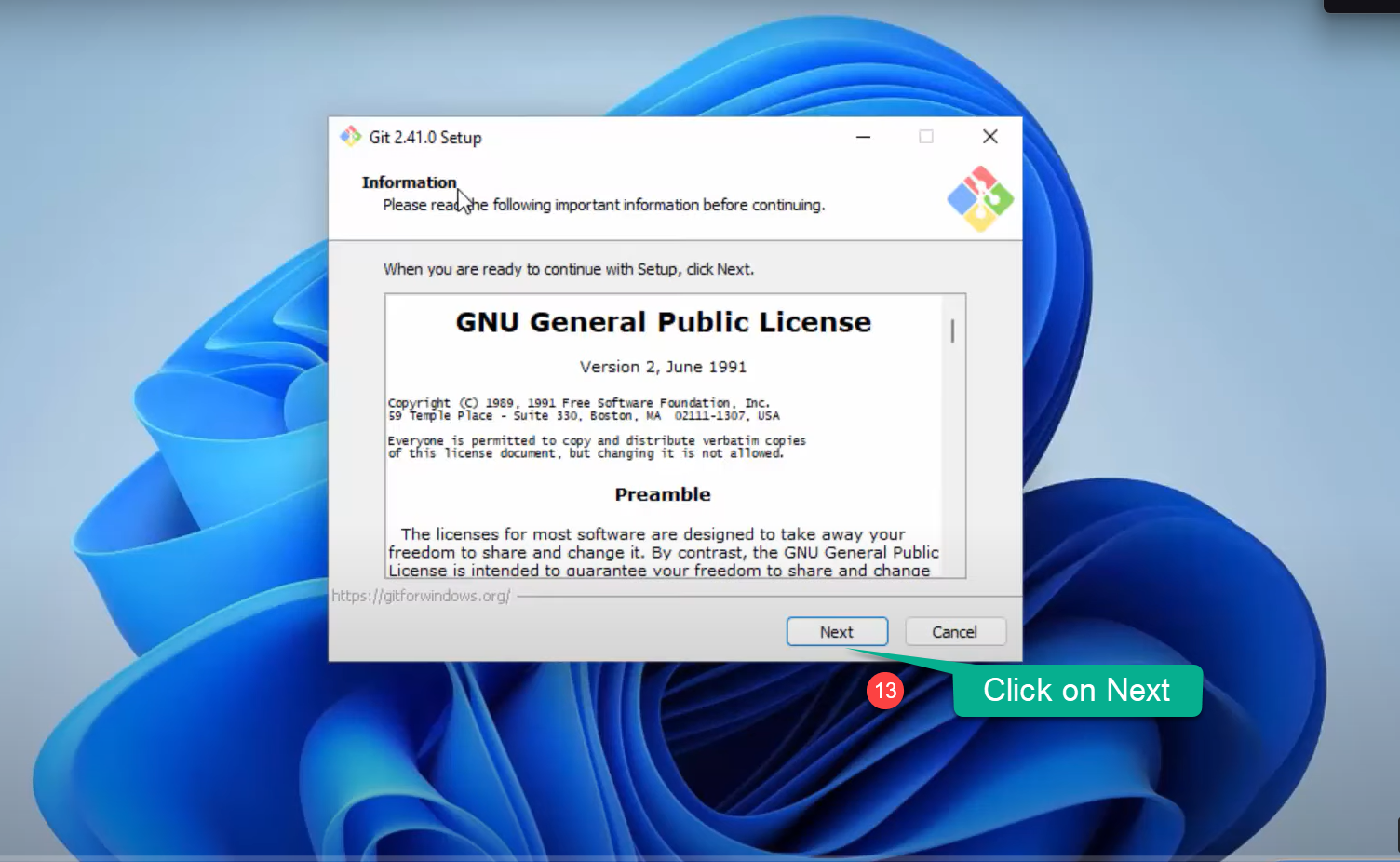
- Marker 13: Click on Next
- On the next screen, click Next on the Public Licence.
- Choose the default location and click Next.
Step 3: Understanding the Interface
Next, Git will ask you to install a couple of components. You can check Additional icons to add them on the Desktop, leave the rest as default and click Next.
- On the next screen, click Next, and make sure the Start Menu folder name is Git.
- Next, choose the default editor. You can use your own editor (I am using Visual Studio Code) or keep Vim as the default editor.
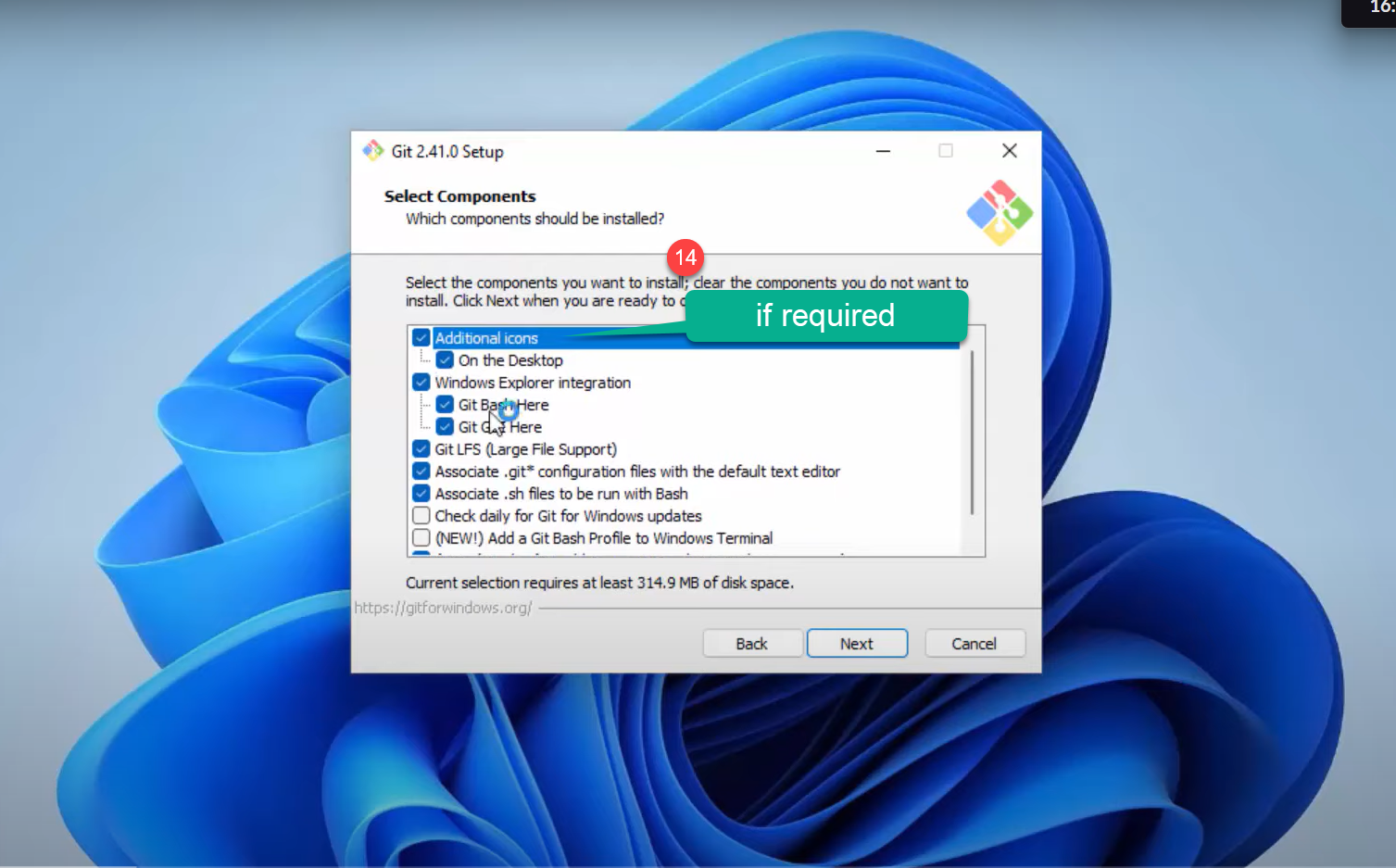
- Marker 14: Additional icons, if required
Step 4: Adjusting the name of the repo setting in Git
At this stage, it will ask you to choose the initial branch name for new repositories. The ideal approach is to pick the second option, as it gives us the flexibility to change the initial branch name, like main, master or trunk.
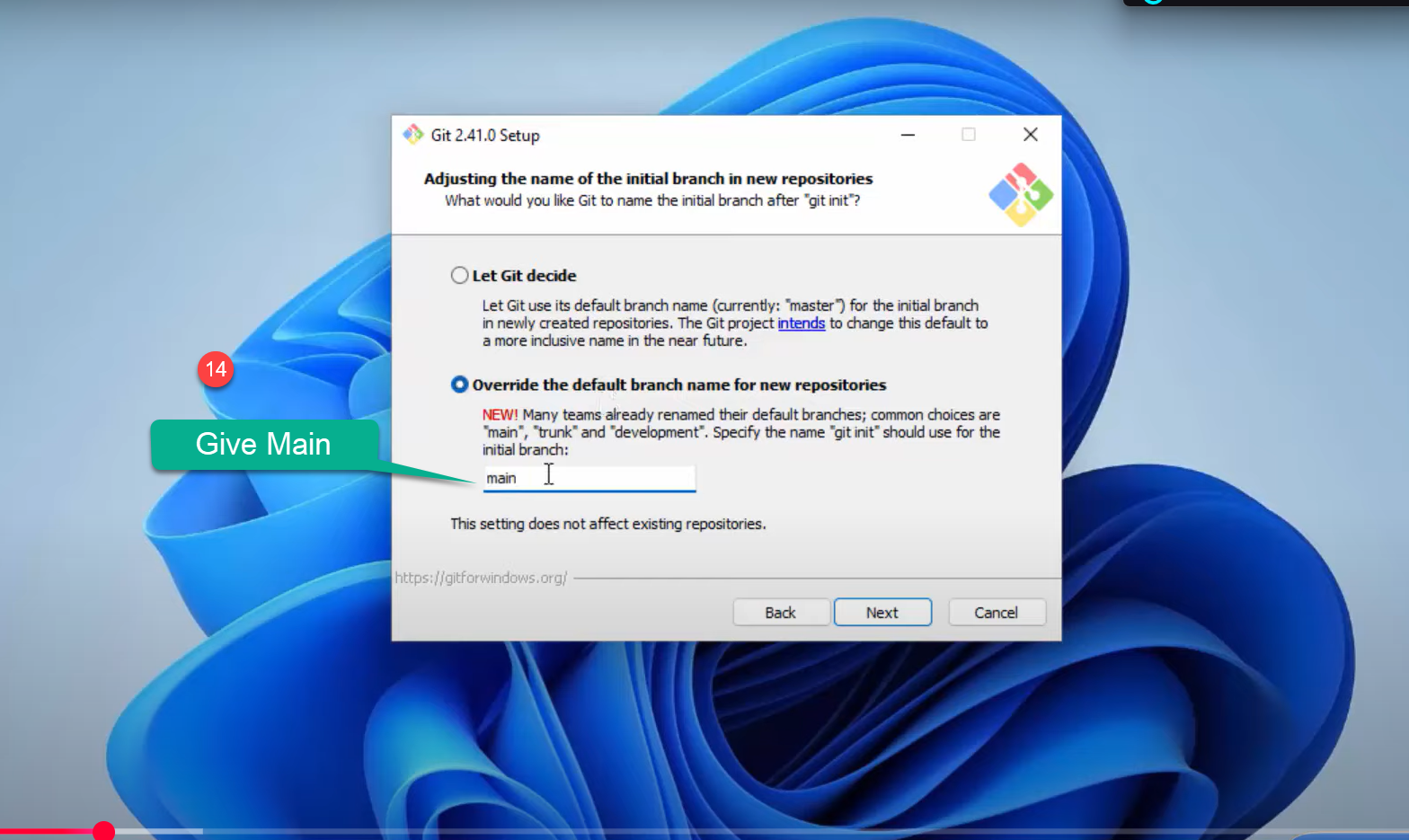
- Marker 14: Give main
Step 5: Adjusting your PATH environment
This is where we specify the PATH environment for Git. Just go with the recommended option, which is option 2.
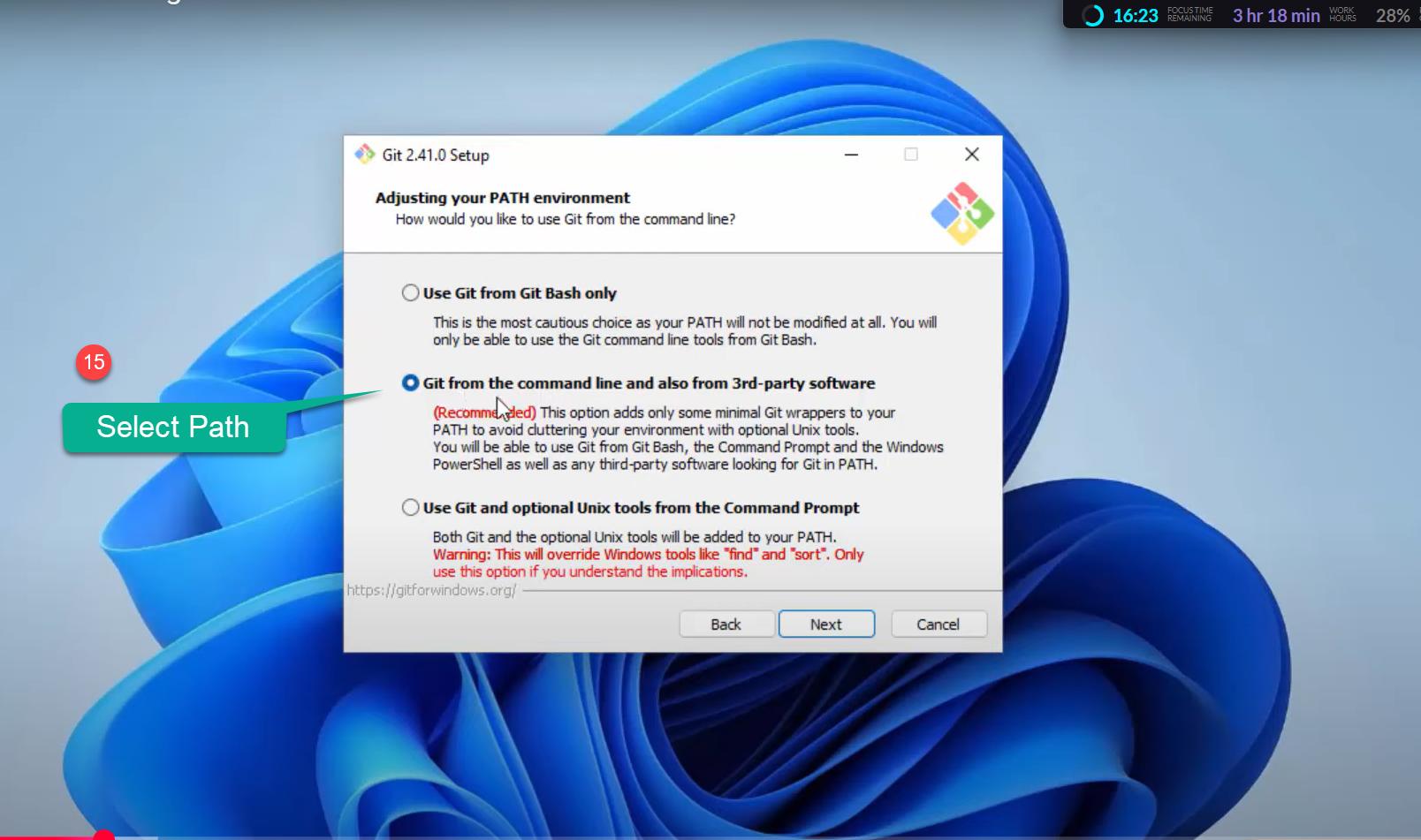
- Marker 15: Select path: Git from the command line and also from 3rd-party software
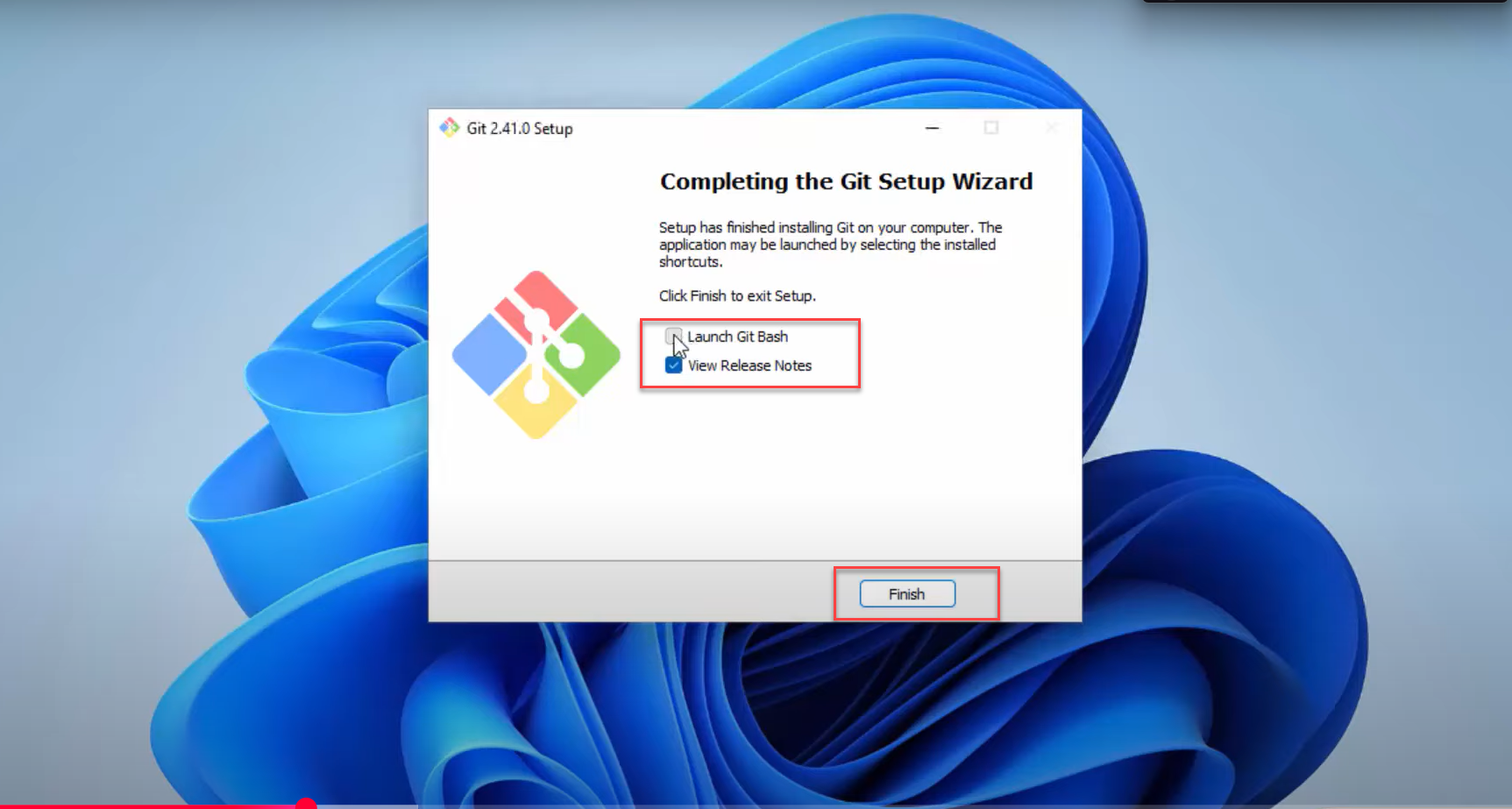
- Launch Git Bash
- Finish
Congratulations! The Git setup is finished and you can now launch Git Bash.
After setup, you will see a few new apps in your PC’s application list: Git Bash, Git GUI and Git CMD. However, we will mostly use Git Bash for uploading our projects.
- We use thisGit BashCommand line, used most in this course
- Git GUIGraphical interface
- Git CMDGit in the Windows command prompt
Check your Git version
Run the command below in Git CMD or the Windows Command Prompt to see your current version of Git. Git installation on Windows is complete.
- Git Code
- Output on browser
git --version
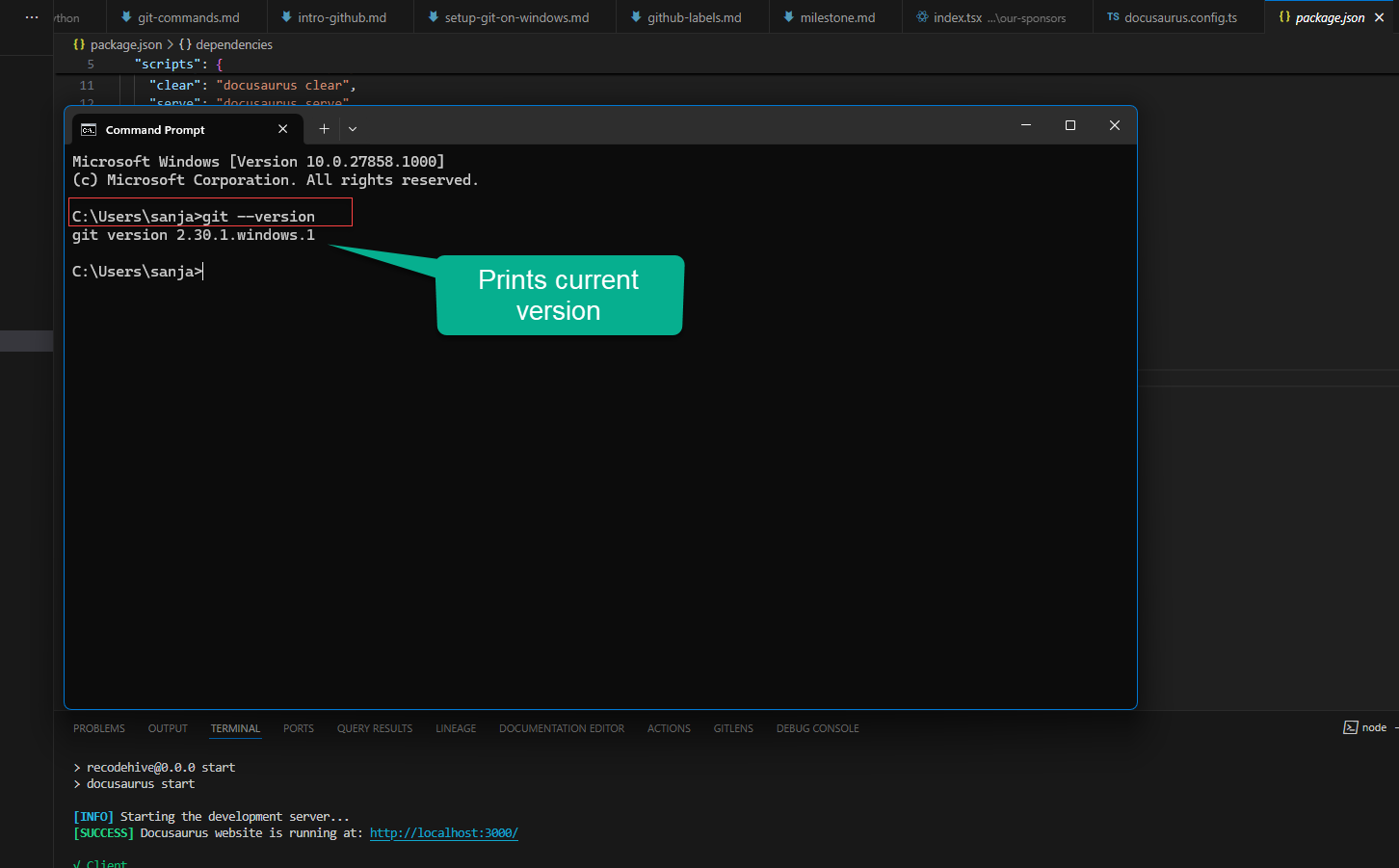
- Prints current version
Conclusion
In conclusion, I hope you enjoyed reading this article on “Setting up your Git environment”. In the next post, we will discuss using Git to create a repository and clone a project from GitHub.
Signing off, Sanjay Viswanathan.
UP NEXT · LESSON 4Setup Git on Mac
Your vote helps us improve our docs.
All our docs are open source. Found a typo, want to add detail or have a better explanation? Anyone can contribute.
Comments
Powered by GitHub Discussions