Azure Data Pipeline Cost Optimization: How We Cut a $4,200 Bill by 73%
The Azure billing email arrived on the first of the month. $4,247.83.
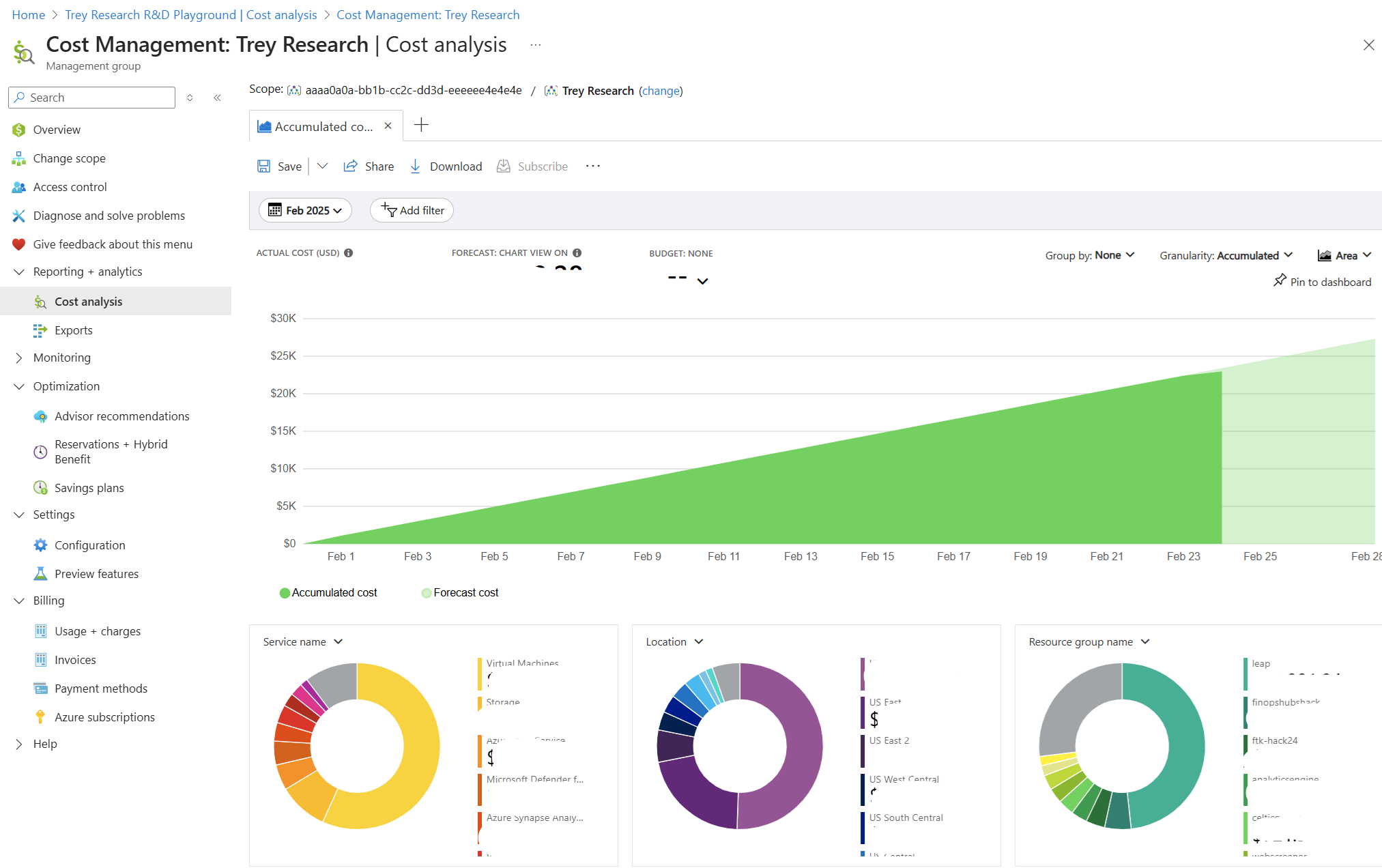
Our pipeline processed roughly 2GB of sales data per day and served a Power BI dashboard to 30 users. There was no logical reason for a bill that size. Over the next three days, a line-by-line audit of Azure Cost Analysis revealed not one big mistake but six medium-sized ones, each silently running up costs in parallel, invisible until the invoice arrived.
This post is that investigation: every mistake explained, every fix documented, and the exact before-and-after numbers. If you're building data pipelines on Azure and haven't audited your costs recently, at least one of these is probably happening to you right now.
What you'll learn in this post:
- Why a Dedicated SQL Pool running 24/7 is the single most expensive default mistake in Azure Synapse
- How to replace nightly full loads with watermark-based incremental loads in Azure Data Factory
- How to right-size Spark pools and configure auto-termination to stop paying for idle compute
- How partition pruning on Delta Lake tables can reduce data scanned by over 90%
- How ADLS Gen2 lifecycle policies passively save money on storage with zero ongoing effort
- When a scheduled micro-batch replaces a 24/7 streaming pipeline without any business impact
The Pipeline Architecture
Before the mistakes make sense, here is the full pipeline:
Daily sales data from REST API (~2GB/day)
    ↓
ADF Pipeline (ingestion)
    ↓
ADLS Gen2 — bronze/ (raw Parquet files)
    ↓
Spark job (transformation)
    ↓
ADLS Gen2 — silver/ (Delta tables)
    ↓
Dedicated SQL Pool (serving layer)
    ↓
Power BI dashboard (30 users)
A standard Medallion Architecture, nothing exotic. 2GB of data per day. 30 users. Should have cost a few hundred dollars a month at most. It cost ~$4,247.83. Here is exactly why.
Mistake #1: Dedicated SQL Pool Running 24/7
Monthly cost of this mistake: ~$1,800
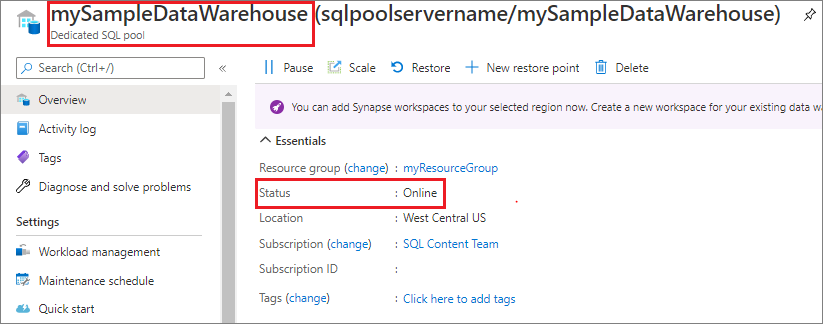
This was the single largest line item. A Dedicated SQL Pool at DW200c was provisioned to serve the Power BI dashboard and left running continuously 24 hours a day, 7 days a week because auto-pause had never been configured.
The thing that surprised me most when I first dug into the bill was this: the SQL Pool charged us the same rate at 3am on a Saturday as it did during peak usage on a Tuesday afternoon. I had assumed, naively, that there was some kind of idle detection built in. There isn't. When it's provisioned, you're paying - full stop, whether a single query runs or not. Our 30 users were active between 9am and 6pm on weekdays, 45 hours of actual usage per week. The pool was running for 168 hours per week. That's 123 hours of idle, fully-billed compute every single week, and it showed up on our invoice as a flat $1,800 charge with no breakdown by usage.
The SQL Pool doesn't throttle billing when it's idle, provisioned capacity is billed by the hour regardless of query activity. Pausing the pool is the only way to stop the DWU clock. Storage costs continue when paused, but the compute component which is the large part, stops completely.
The Fix: Auto-Pause with Azure Automation Runbooks
The solution is two Azure Automation runbooks, one to pause the pool at the end of business hours, one to resume it in the morning. The runbooks use Managed Identity for authentication, which avoids hardcoding credentials.
# Azure Automation Runbook — pause Synapse SQL Pool outside business hours
from azure.identity import ManagedIdentityCredential
from azure.mgmt.synapse import SynapseManagementClient

credential = ManagedIdentityCredential()
client = SynapseManagementClient(credential, subscription_id)

# Pause at 7pm weekdays
client.sql_pools.begin_pause(
    resource_group_name,
    workspace_name,
    sql_pool_name
)
Schedule the pause runbook at 7pm weekdays and the resume runbook at 8am. Weekends stay paused unless a manual override is triggered through the Azure portal.
Result: Billed hours dropped from 720 to roughly 210 per month. SQL Pool cost fell from ~$1,800/month to ~$530/month, a saving of $1,270/month.
If your workload is exploratory rather than dashboard-serving, consider whether Serverless SQL Pool is sufficient. Serverless pools bill per TB of data scanned rather than provisioned DWUs, which can be significantly cheaper for infrequent query patterns.
Mistake #2: Full Load Running Every Night Instead of Incremental
Monthly cost of this mistake: ~$620
The ADF pipeline was configured to pull all records from the source database on every nightly run not just new or updated ones. Day 1 it pulled 2GB. By Day 60 it was pulling 120GB, processing records that had already been processed 59 times before.
This pattern is extremely common and extremely expensive. Every night, the ADF pipeline read the entire historical dataset, the Spark transformation job processed all of it, and the results were written back to Delta. The billable compute scaled with the dataset size, not with the actual volume of new data.
The Fix: Watermark-Based Incremental Loading
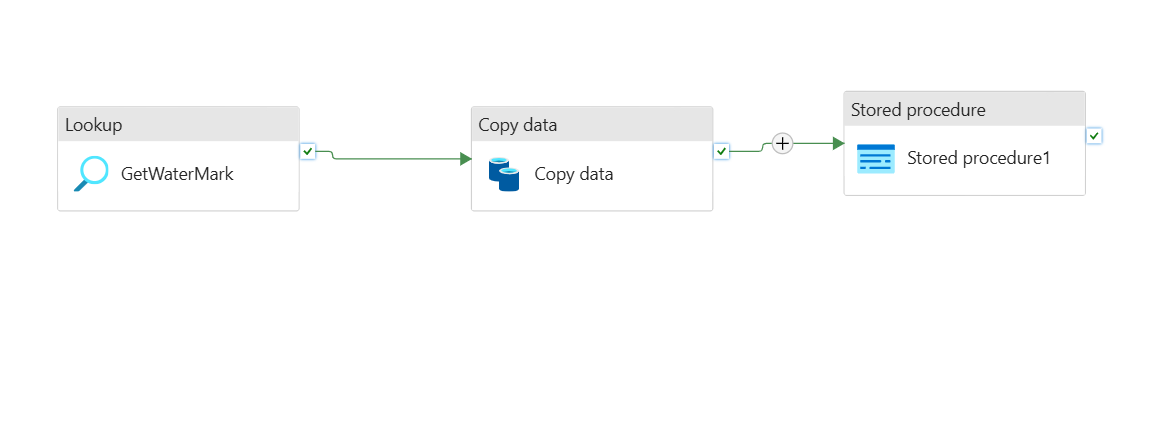
A watermark stores the timestamp of the last successfully processed record. Every pipeline run reads only records newer than that timestamp, then updates the watermark on success.
The implementation in ADF uses two Lookup activities and a query parameterized by the watermark value:
- Query
- Output
-- Step 1: ADF Lookup activity — retrieve the last watermark
SELECT last_processed_date
FROM pipeline_watermarks
WHERE pipeline_name = 'sales_ingestion'
-- Step 2: Source query, parameterized by watermark from Step 1
SELECT *
FROM orders
WHERE updated_at > '@{activity("GetWatermark").output.firstRow.last_processed_date}'
  AND updated_at <= '@{utcnow()}'
-- Step 3: After successful pipeline run, advance the watermark
UPDATE pipeline_watermarks
SET last_processed_date = '@{utcnow()}'
WHERE pipeline_name = 'sales_ingestion'
| Pipeline Run | Records Processed | Data Volume | ADF Cost |
|---|---|---|---|
| Before (full load, Day 60) | ~4.8M rows | ~120 GB | ~$22/run |
| After (incremental) | ~8,000 rows | ~2 GB | ~$0.40/run |
Result: ADF activity runtime dropped by 94%. Spark compute for the transformation step fell proportionally. Combined saving: ~$585/month.
The watermark pattern requires a reliable updated_at or created_at column in the source table. If your source does not have one, work with the source team to add it, the cost saving on the pipeline side will far outweigh the schema migration effort.
Mistake #3: Spark Cluster Over-Provisioned for the Actual Workload
Monthly cost of this mistake: ~$480
When setting up the Spark pool in Azure Synapse, the default node size DS3_v2 (4 cores, 14GB RAM) was selected with 5 nodes. The actual workload: transforming 2–5GB of Parquet files daily with deduplication, type casting, and a few joins.
Two problems compounded each other. First, the cluster was consuming roughly 10x the compute it actually needed for the data volume. Second, auto-termination was set to 60 minutes, meaning after a 12-minute job, the cluster sat idle and fully billed for another 48 minutes before shutting down.
The Fix: Right-Sizing, Autoscale, and Fast Termination
The fix has three components that work together:
{
  "nodeSize": "Small",
  "minNodeCount": 2,
  "maxNodeCount": 4,
  "autoscaleEnabled": true,
  "autoTerminationEnabled": true,
  "autoTerminationDelayInMinutes": 5
}
The third component is tuning the shuffle partition count inside the Spark notebook. The default of 200 partitions is calibrated for large clusters and large datasets. For 2–5GB of data on a small cluster, 200 partitions creates unnecessary overhead that extends job runtime and therefore billed compute time.
# Place in the first cell of every Spark notebook
# Default is 200 partitions — designed for multi-TB workloads
# For 2–5 GB datasets, 8 is appropriate
spark.conf.set("spark.sql.shuffle.partitions", "8")
A good rule of thumb for spark.sql.shuffle.partitions: aim for roughly 128MB of data per partition. For a 2GB dataset, that's approximately 16 partitions. Err slightly lower rather than higher for small datasets on small clusters.
Result: Spark compute cost dropped from ~$580/month to ~$100/month, a saving of $480/month.
Mistake #4: Reading ADLS Gen2 Files Without Partition Pruning
Monthly cost of this mistake: ~$290
The Silver layer Delta table was partitioned by order_date. The Spark transformation job, however, was reading the entire table and applying a date filter after the read not during it.
Think of it like this: imagine your filing cabinet is organized by month, one drawer per month, clearly labelled. Partition pruning is pulling open only January's drawer. What we were doing instead was dumping every drawer onto the floor, sifting through three years of paper, and throwing away everything that wasn't from January then tidying it all back up. Every. Single. Night. The cabinet is organized correctly. We just weren't using the labels.
With 90 days of accumulated history, this approach was scanning 90x more data than necessary on every run. The fix is to push the filter into the read itself so Spark can use the partition directory structure to skip everything irrelevant before a single file is opened.
- Before (Expensive)
- After (Optimized)
# Reads the ENTIRE Delta table, then filters in memory
# With 90 days of history: scans ~180GB to get ~2GB of useful data
silver_df = spark.read.format("delta").load(
    "abfss://data@mylake.dfs.core.windows.net/silver/sales/"
)
filtered_df = silver_df.filter(col("order_date") == yesterday)
from datetime import datetime, timedelta

yesterday = (datetime.now() - timedelta(days=1)).strftime("%Y-%m-%d")

# Filter pushed into the read — Spark only opens yesterday's partition
# With 90 days of history: scans ~2GB instead of ~180GB
silver_df = (
    spark.read.format("delta")
    .load("abfss://data@mylake.dfs.core.windows.net/silver/sales/")
    .filter(col("order_date") == yesterday)
)
Result: Data scanned per run dropped from ~180GB to ~2GB. Spark runtime fell from 18 minutes to 4 minutes. Monthly saving: ~$260/month.
For partition pruning to work, two conditions must both be true. The table must be partitioned by the filter column, and the filter must be applied at read time not in a subsequent transformation step. Applying the filter even one .filter() call after the .load() still results in a full table scan in some execution contexts.
Mistake #5: Keeping Historical Data on Hot Storage Tier
Monthly cost of this mistake: ~$180
The ADLS Gen2 Bronze layer had 14 months of raw Parquet files sitting on the Hot storage tier. No lifecycle policy had ever been configured.
ADLS Gen2 charges different rates depending on the storage access tier. When I pulled our actual invoice line items, the numbers told a clear story: our Bronze container was costing us $0.023 per GB per month on Hot, while data we hadn't touched in months was sitting right next to yesterday's files paying the same rate. Moving files older than 30 days to Cool dropped that rate to roughly $0.013/GB, about 44% less for data we only needed occasionally. Files older than 180 days dropped to Archive at around $0.002/GB, which is where old Bronze raw files belong when the Silver layer already has the clean version.
Fourteen months of ~2GB/day accumulates to roughly 850GB in the Bronze layer. The fix required exactly one policy configuration.
The Fix: ADLS Gen2 Lifecycle Management Policy
{
  "rules": [
    {
      "name": "bronze-tier-management",
      "type": "Lifecycle",
      "definition": {
        "filters": {
          "prefixMatch": ["bronze/"],
          "blobTypes": ["blockBlob"]
        },
        "actions": {
          "baseBlob": {
            "tierToCool": {
              "daysAfterModificationGreaterThan": 30
            },
            "tierToArchive": {
              "daysAfterModificationGreaterThan": 180
            }
          }
        }
      }
    }
  ]
}
Bronze files automatically move to Cool after 30 days and Archive after 180 days — with no pipeline changes and no ongoing maintenance.
Apply lifecycle policies to the Silver and Gold layers too, with longer thresholds. Silver data accessed for backfills after 90 days can move to Cool. Gold data older than 365 days can move to Archive if your reporting doesn't require historical drill-downs that old.
Result: ~$160/month in combined storage and egress savings, purely passive, set once and forgotten.
Mistake #6: A Streaming Pipeline for 15-Minute Update Requirements
Monthly cost of this mistake: ~$380
A secondary pipeline fed a "near real-time" inventory dashboard. The product team had asked for updates as fast as possible, which was interpreted as: build a Kafka + Flink streaming pipeline with always-on infrastructure.
What the product team actually needed, when pinned down to a specific number: inventory counts updated every 15 minutes.
A streaming pipeline running 24/7 to deliver 15-minute updates is the cloud equivalent of leaving your car engine running all night because you have an early meeting. The always-on Kafka cluster and Flink job cost $380/month. The business requirement was achievable with a job that runs for 2–3 minutes, 96 times a day.
The Fix: Micro-Batch with ADF Tumbling Window Trigger
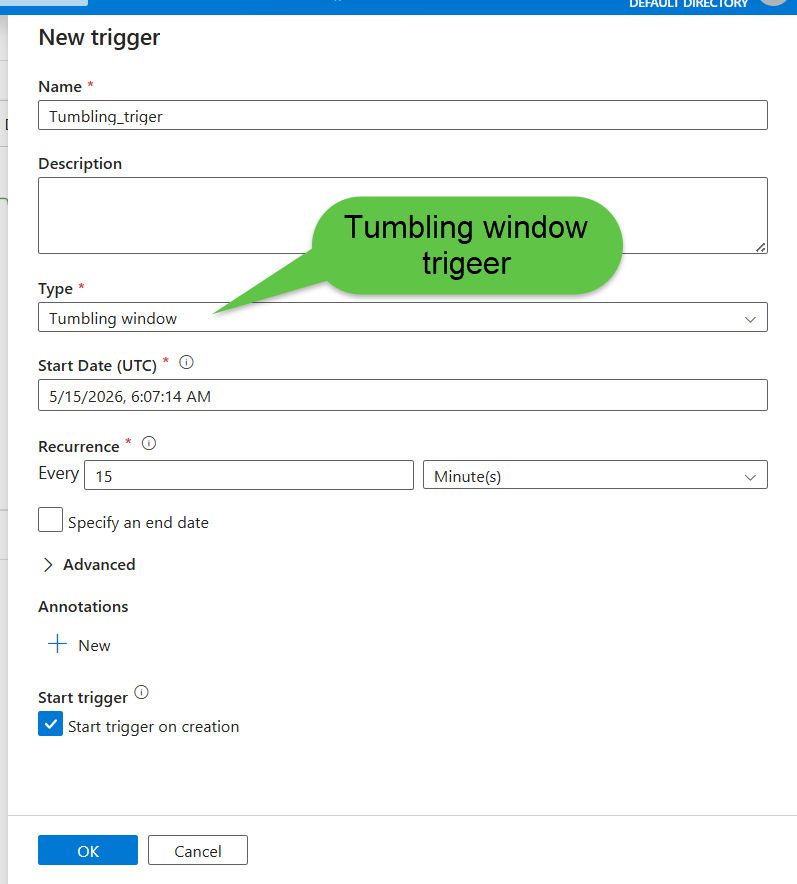
An ADF Tumbling Window trigger fires the pipeline every 15 minutes. Each run reads only the delta since the last watermark, processes it, and shuts down. No infrastructure stays running between executions.
{
  "type": "TumblingWindowTrigger",
  "typeProperties": {
    "frequency": "Minute",
    "interval": 15,
    "startTime": "2024-01-01T00:00:00Z",
    "retryPolicy": {
      "count": 3,
      "intervalInSeconds": 30
    }
  }
}
The pipeline runs for 2–3 minutes every 15 minutes, processes the delta since the last run using the same watermark pattern from Mistake #2, then shuts down. The product team's dashboard still updates every 15 minutes. They noticed zero difference.
A useful mental model for this decision: streaming is the right choice when latency requirements are below 60 seconds. For anything above that threshold, a well-designed micro-batch pipeline is almost always cheaper, simpler, easier to monitor, and easier to debug. The hidden costs of streaming pipelines go beyond compute they include more complex failure handling, harder-to-test logic, and longer debugging cycles.
Result: Streaming infrastructure cost of $380/month replaced by ~$40/month in ADF + Spark compute. $340/month saved.
Before and After Summary
| Mistake | Monthly Cost Before | Monthly Cost After | Saving |
|---|---|---|---|
| Dedicated SQL Pool running 24/7 | $1,800 | $530 | $1,270 |
| Full load instead of incremental | $620 | $35 | $585 |
| Over-provisioned Spark cluster | $580 | $100 | $480 |
| No partition pruning | $290 | $30 | $260 |
| Hot storage for historical data | $180 | $20 | $160 |
| Streaming for 15-min updates | $380 | $40 | $340 |
| Total | $3,850 | $755 | $3,095 |
From $4,247 down to approximately $1,150 after all fixes, a 73% cost reduction on a pipeline doing exactly the same work on exactly the same data.
Cost Optimization Checklist
Run through this every quarter. Each item is a question, if the answer is "no" or "I don't know," investigate it.
Dedicated SQL Pool
- Is auto-pause configured for outside business hours?
- Is Dedicated SQL Pool actually required, or would Serverless SQL Pool suffice for the query pattern?
ADF Pipelines
- Are any pipelines running full loads where incremental loads are possible?
- Is a watermark implemented for every pipeline reading time-series data?
Spark Pools
- Is node size right-sized for actual data volume, not default?
- Is auto-termination set to 5 minutes, not 30–60?
- Is
spark.sql.shuffle.partitionstuned to actual data size? - Is autoscale enabled with realistic min/max node counts?
ADLS Gen2
- Are lifecycle policies configured on all containers?
- Are Delta tables partitioned by the column filtered most frequently?
- Is partition pruning applied at read time in all Spark notebooks?
Streaming Infrastructure
- What is the actual latency requirement, in minutes?
- If it is above 5 minutes — is a micro-batch pipeline in use instead of always-on streaming?
Key Lessons
Defaults are expensive by design. Azure's defaults - 60-minute Spark termination, no SQL Pool auto-pause, no lifecycle policies are chosen for zero-friction setup, not cost efficiency. Every default should be reviewed and overridden deliberately on day one, not after the first billing surprise.
Incremental loading is not a future optimization. For any pipeline reading time-series data from a growing source, a full load that runs daily compounds in cost the same way interest compounds on debt. The watermark pattern takes a few hours to implement and pays for itself within a week.
Partition pruning is free performance. Setting up partitioning correctly at table creation and pushing filters into the read step costs nothing to implement and can reduce Spark compute by over 90%. The only requirement is knowing which column you filter on most frequently which you almost certainly already know.
"Real-time" almost never means real-time. The product team's requirement was 15-minute updates. The engineering interpretation was 24/7 streaming infrastructure. The gap between those two decisions cost $340/month and made the pipeline significantly harder to maintain. Before designing streaming, ask for a specific latency number, then design to that number.
Azure Cost Analysis is a weekly habit, not a monthly emergency. The six mistakes above were invisible until the invoice arrived. Fifteen minutes a week in Azure Cost Management catches problems while they are a $50 anomaly, not a $500 line item.
Frequently Asked Questions
Q: Should I always use Serverless SQL Pool instead of Dedicated SQL Pool to save costs? A: We actually tested this switch on our own setup before committing to the auto-pause approach. Serverless made sense for us until we crossed about 6 hours of daily query time, below that threshold, serverless was cheaper every single month without exception, and we didn't need to manage any pause/resume scheduling at all. If your Power BI dashboard is hit heavily throughout the business day, dedicated will eventually win on pure cost. But if usage is bursty or confined to a few hours, don't provision dedicated capacity and then fight to keep it paused, just go serverless from the start.
Q: What if my source system doesn't have a reliable updated_at column for watermarking?
A: We ran into this with one of our source databases, no timestamp, no audit column, nothing. We ended up going the CDC route using Debezium, which captures row-level changes at the database log level without touching the source schema at all. It took about a day to set up and was the cleanest solution we found. For append-only tables, an auto-incrementing primary key works as a watermark substitute. If neither option exists, row hash comparison is a last resort, it detects changes, but you're still reading the full source every run, which defeats most of the point.
Q: How do I choose the right partition column for a Delta Lake table? A: The short answer is: whichever column appears in your most common filter is your partition column, and for time-series data that's almost always a date. What I'd caution against is partitioning on something high-cardinality like user ID or transaction ID, we made that mistake early on and ended up with thousands of tiny files that made partition pruning useless and actually slowed down reads. A healthy partition should hold somewhere between 100MB and 1GB of data. If a partition is smaller than that, you're creating file overhead without the pruning benefit.
Q: Will moving data to Archive tier in ADLS Gen2 break my backfill pipelines? A: I learned this the hard way, a backfill job failed at 2am because Archive data doesn't just open like a normal file. You have to explicitly rehydrate it first, and depending on the priority tier you choose, that can take anywhere from an hour to fifteen hours. We got caught by this once, and now the rule on our team is: only archive data where we have at least 24 hours of lead time if a backfill request comes in. For Bronze raw files older than 180 days, that's usually fine, nobody's doing emergency backfills on six-month-old raw data. For Silver and Gold, we stop at Cool tier and don't go to Archive at all, because the rehydration wait is unacceptable mid-incident.
Q: Is a 5-minute Spark auto-termination window too aggressive for interactive notebooks? A: For scheduled production jobs, 5 minutes is ideal, the job finishes, and within 5 minutes the cluster is gone and billing stops. For interactive development work, 5 minutes will drive you crazy because the cluster spins down between notebook cells if you pause to think. What we do is maintain two separate Spark pool configurations: one for production jobs set to 5-minute termination, and one for dev work set to 60 minutes. They run on different node sizes too. Keep them separate and you get cost efficiency in production without interrupting development flow.
Q: How do I detect whether partition pruning is actually working in my Spark job?
A: The fastest way is to run df.explain() and look at the physical plan output. If partition pruning is active, you'll see a PartitionFilters entry in the scan node listing your filter predicate. If that field shows PartitionFilters: [] - empty brackets, you're scanning the full table regardless of what your code looks like. I've caught this bug three times by checking the plan after what looked like a correctly written filter, and each time it turned out the filter was being applied one transformation step too late, after Spark had already committed to a full read.
References and Further Reading
- Microsoft Docs - Azure Cost Management and Billing
- Microsoft Docs - Synapse SQL Pool Pause and Resume
- Microsoft Docs - ADLS Gen2 Lifecycle Management Policies
- Delta Lake - Partition Pruning and Optimization
- Microsoft Docs - ADF Tumbling Window Trigger
- RecodeHive - Azure Storage and ADLS Gen2 Complete Guide
- RecodeHive - Hidden Cost of Streaming Pipelines
- RecodeHive - Medallion Architecture Explained
About the Author
Aditya Singh Rathore is a Data Engineer focused on building modern, scalable data platforms on Azure. He writes about data engineering, cloud architecture, and real-world pipelines on RecodeHive — turning hard-won production lessons into content anyone can apply.
📩 Got an Azure bill that surprised you? Drop the line item in the comments — happy to help debug it.

Improve this Blog Post
All our blog posts are open source. Found a typo, want to add more detail, or have a better explanation? Anyone can contribute and make this post better for everyone.